![neticle_w.svg]](https://neticle.com/hubfs/neticle_w.svg)
In Neticle Media Intelligence, every chart can be customized using the filter panel on the left. This guide explains how to apply changes to a single chart, update multiple charts at once, and save your settings permanently.
1. Applying changes to a single chart
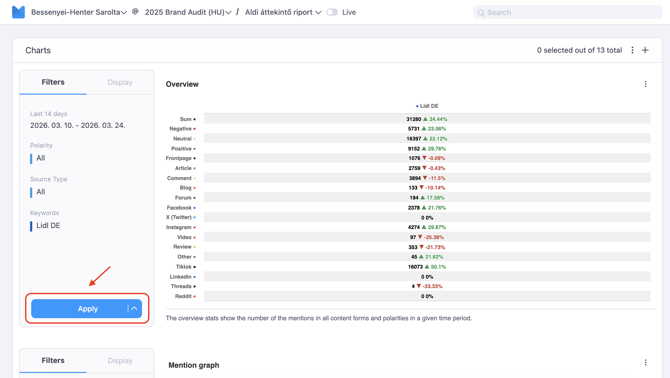
On the left side of each chart, you can find the primary filters (Date, Polarity, Source, Keyword) and Advanced filters.
-
After making your adjustments, click the "Apply" button below the filters.
-
This will refresh the data only for that specific chart.
2. Applying changes in bulk to multiple charts
If you want to use the same filter settings for several charts, you don't need to set them manually one by one:
-
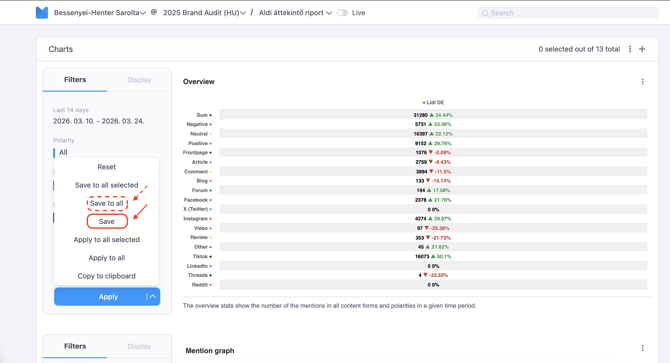
Click the arrow (chevron icon) next to the Apply button.
-
Apply changes to all charts: This will update every chart within the current report.
-
Apply changes to selected charts: This updates only the charts you have manually selected. (You can select charts by clicking on their titles; a colored title indicates selection.)
3. Copying filter settings (Copy to clipboard)
You can also transfer filter settings from one chart to another, even across different reports:
-
Click the arrow next to the Apply button and select "Copy to clipboard."
-
Go to the target chart, click the "+" (Advanced filters) icon next to the filters, and select the copied settings from the top of the list.
4. Saving your settings permanently
Important: Changes made to charts are not saved automatically. If you refresh the page or log out, the charts will revert to their last saved state.
-
To finalize your changes, click the arrow next to the Apply button and select "Save to all."
-
Note: Once you click "Save to all," these settings will become the default view for every other user who has access to this report.